
Using Linguator, you can easily translate your WordPress content using Edge AI, generating translations directly in the Microsoft Edge browser.
What Is Edge AI Translation?
Edge AI Translation uses Microsoft Edge’s built-in AI capabilities to translate your WordPress content in real-time.
Unlike API-based translation services, Edge AI does not require you to add an API key or configure an external AI provider. If your browser supports the required Edge AI features, you can select Edge AI as the translation engine in Linguator and generate translations in minutes.
Translate Automatically via Edge Built-in AI
Follow the steps below to automatically translate content using Edge built-in AI:
- Edit the Page or Post that you want to translate.
- From the sidebar of the page editor, access the language settings tab.
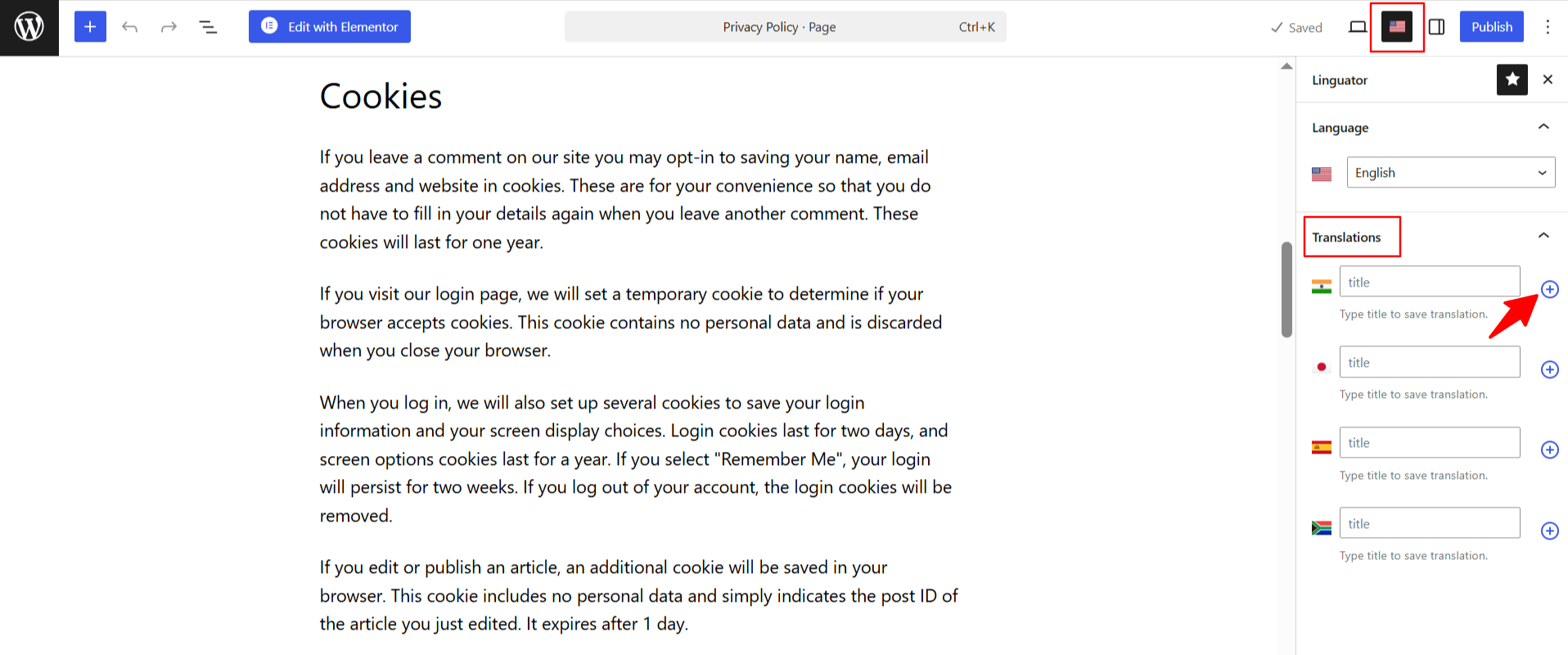
- Choose the language in which you want your page to be translated.
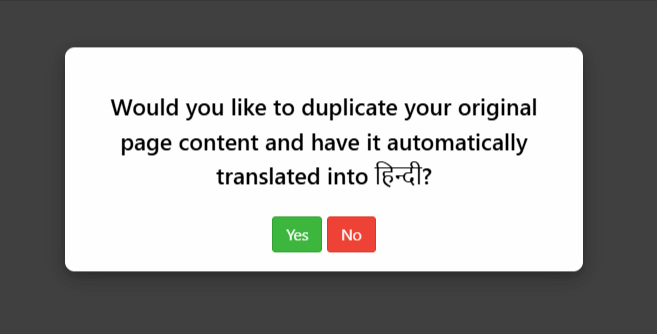
- A prompt will appear asking if you want to duplicate the original page content. Select “Yes”.
- Next, a new box titled Select Translation Provider will appear. Choose Edge Built-in AI.
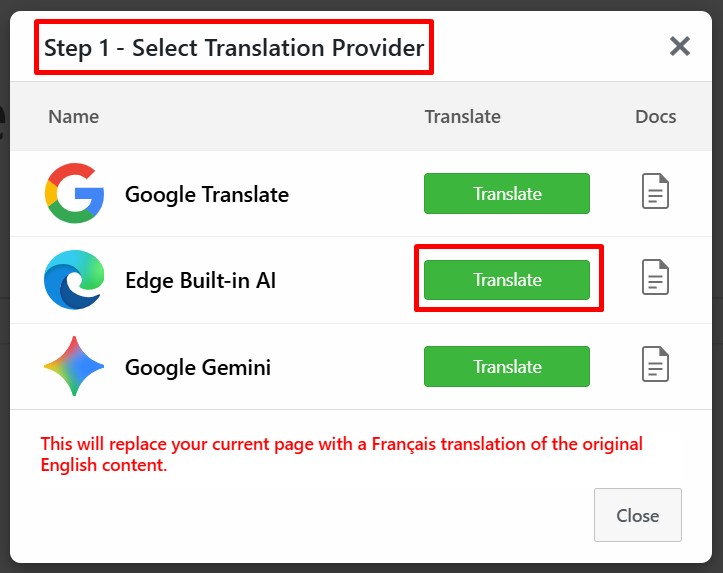
Note: If the selected translation provider is disabled, enable it from Linguator > Settings > AI Translation before starting the translation process.
- Once selected, a tab containing both the source text and translation text will appear.
- Click Translate button. The translation process will begin, and wait for a few minutes.
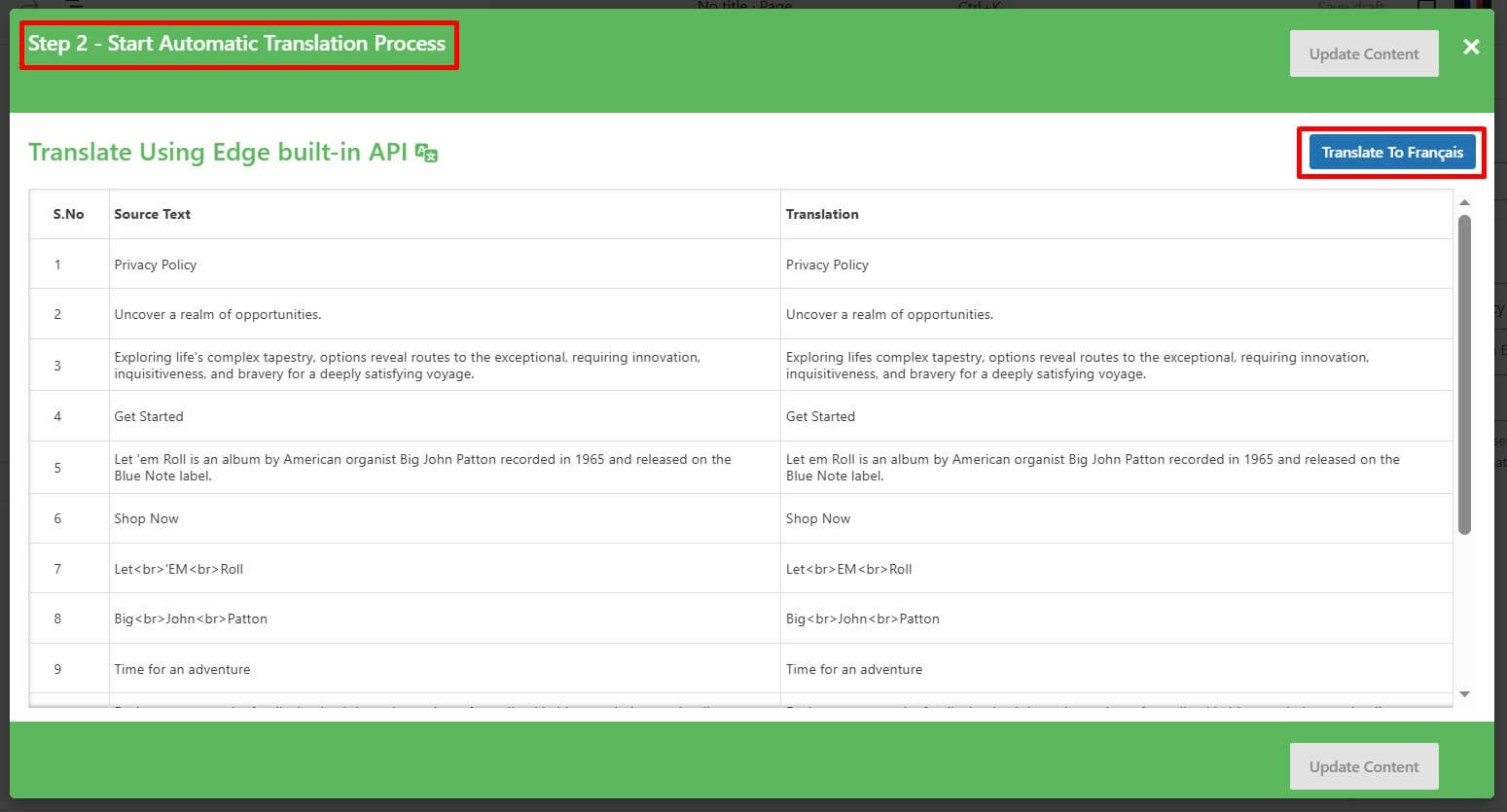
- After the translation completes, click Update Content.
- All content of the website will be translated into a selected language with a single click.
- Now, preview it and make manual edits to adjust translations for better accuracy.
That’s it! You have successfully translated your page/post automatically via the Edge built-in AI using Linguator.